How to Open and Edit JSON, XML, and Code Files on Android (No Laptop Needed)
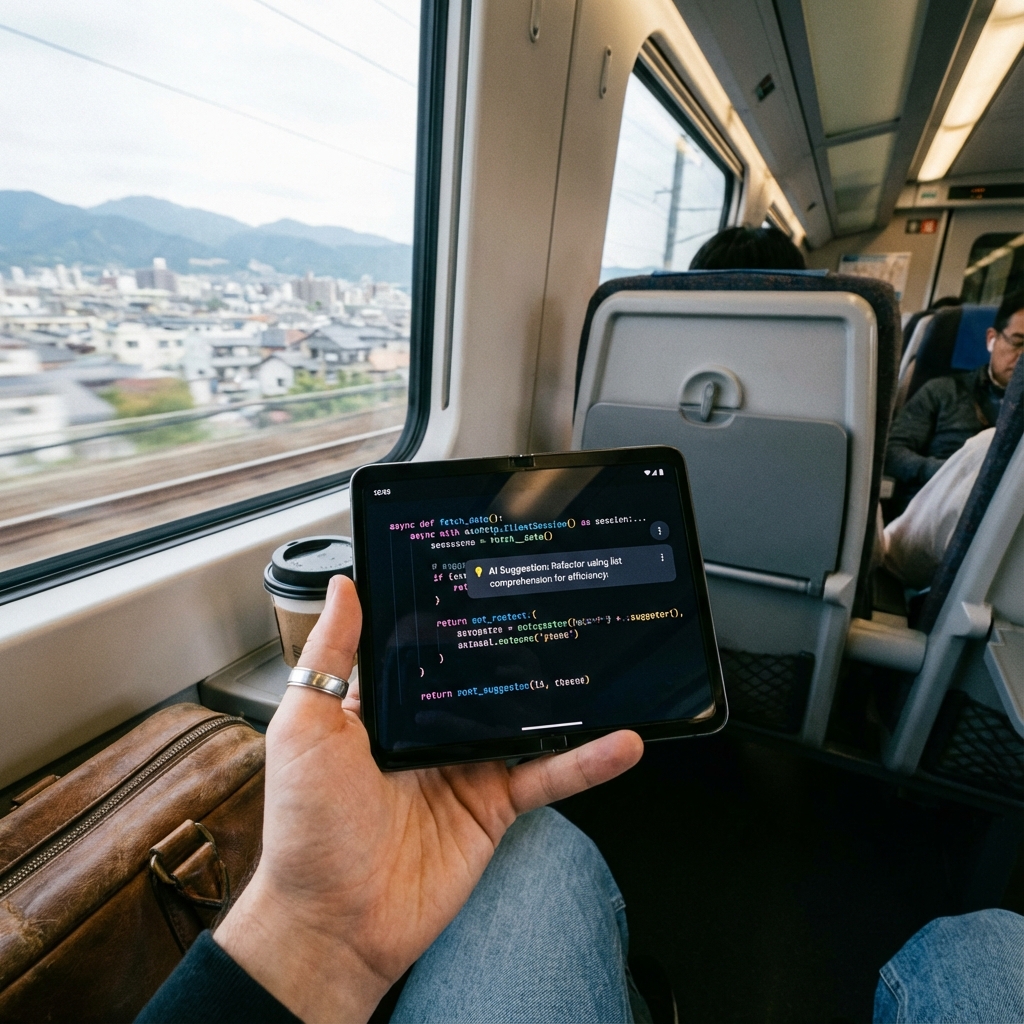
Need to check a JSON response, tweak an XML config, or fix a line of Python while you're away from your laptop? Here's how Simple Text Editor handles programming files directly on Android, with AI assistance built in.
Every developer eventually hits this moment: a JSON payload needs checking, an XML config needs a quick edit, or a Python script needs a one-line fix — and the only device in hand is a phone. Android's default file and text apps aren't built for this. Simple Text Editor is.
Why Android's Built-In Apps Fall Short
Most Android phones ship with a basic notes app or a file manager that can, at best, display a text file as a wall of unformatted characters. Programming files — .json, .xml, .py, .java, .js, .yaml — either won't open at all, or open in a viewer with no syntax awareness, no save-in-place editing, and no way to safely lock the file against accidental changes. For anyone doing real work on the go, that's a dead end.
Opening Any File Type Without Conversion
Simple Text Editor opens .json, .xml, .java, .py, and plain text files directly — no converting to .txt first, no losing formatting. You pick the file from storage or a shared link, and it opens ready to read or edit, exactly as it would in a desktop editor.
Checking a JSON Response On the Go
A common scenario: you're debugging an API and need to inspect a JSON payload someone sent you, or exported from a mobile app. The built-in JSON validation checks structure and flags malformed syntax — missing brackets, trailing commas, unescaped characters — the same class of errors that normally require a desktop tool to catch.
Editing XML Configs Without Breaking Structure
XML files are unforgiving about structure — one unclosed tag and the whole file breaks. Because Simple Text Editor treats the file as real text (not a flattened preview), you can make a targeted edit, save, and share it back without round-tripping the file through email or a cloud drive just to get it onto a "real" computer.
AI Assistance for Code, Not Just Text
Beyond opening files, the app includes AI coding tools: intelligent code comparison (useful for spotting what changed between two versions of a file), auto-formatting, and natural-language explanations of unfamiliar code — handy when you're reviewing a pull request or a script someone else wrote and want a quick explanation without pulling out a laptop.
Find & Replace, Undo/Redo, and Read-Only Locking
The editing basics are all there: find & replace across the file, full undo/redo history, and a read-only lock mode so you can safely review a file — someone else's config, a sensitive script — without risking an accidental keystroke changing it.
Getting the File Back Out
Once you're done, export to PDF or plain text, share the file directly from the app, or print it via a connected printer for a physical code review copy. There's no forced upload to a cloud service — the file goes wherever you choose to send it.
Works Without a Connection
Opening, editing, and saving files works fully offline. The AI tools — code comparison, auto-formatting, grammar and text tools — need an internet connection, but the core job of opening and editing a code file never depends on connectivity, which matters when you're debugging on a train or in a spot with no signal.
Who Actually Uses This
Developers reviewing a pull request from their phone between meetings, students editing a Python assignment without a laptop nearby, and technical support staff checking a JSON or XML config sent in by a customer — the common thread is needing to read or make a small, precise edit to a structured file without a full desktop environment.
Getting Started
Install Simple Text Editor (SwiftWrite) from the Play Store, open any .json, .xml, .py, or .java file directly from your device storage or a shared file, and start editing — no account, no setup screen, no forced sign-in.
Frequently Asked Questions
Can I edit JSON files directly on Android without a computer?
Yes. Simple Text Editor opens .json files directly, validates JSON structure to flag syntax errors, and lets you edit and save in place — no conversion to plain text and no desktop tool required.
Does editing code files on Android require an internet connection?
No. Opening, editing, and saving files works fully offline. Only the AI features — code comparison, auto-formatting, and text tools — require a connection.
What programming file types can Simple Text Editor open?
It opens JSON, XML, Java, Python, and plain text files directly, along with most common code and configuration file formats, without requiring conversion.