How to Turn Any Android TV Into Digital Signage (No Media Player Needed)
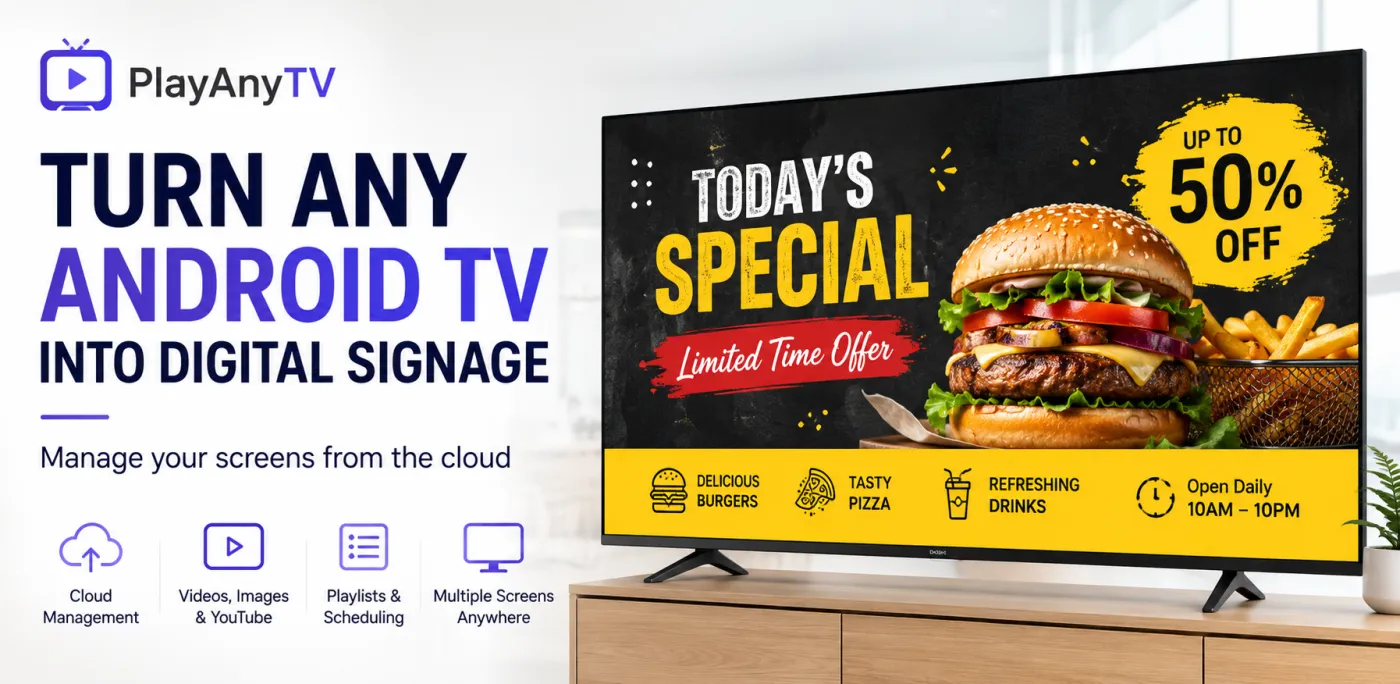
A step-by-step guide to turning an Android TV or Google TV into a remotely managed digital signage screen with PlayAnyTV: install the app, pair with a code, and push a playlist from the web.
Most shops, restaurants and offices already own the screen they need for digital signage. If it runs Android TV or Google TV, you don't need a separate media player box, a USB stick that someone has to update by hand, or a technician. You need an app on the TV and a dashboard to control it.
What Digital Signage Actually Needs
A signage screen has to do three things reliably: play the right content in a loop, start again on its own, and let you change what's on it without walking up to the TV. A USB stick does the first. A browser tab does it badly. A cloud digital signage app does all three.
Step 1: Install PlayAnyTV on the TV
Open the Play Store on your Android TV or Google TV and install PlayAnyTV. When you open it, the TV shows a 6-digit pairing code and a QR code.
Step 2: Create Your Account and Upload Media
On a laptop or phone, sign in at playanytv.techpuram.com, create your organization and upload the images and videos you want to show. You can also add YouTube links.
Step 3: Pair the TV With the Code
In the dashboard, add a device and enter the code from the TV screen. The TV now appears in your device list with its online status. There is no network setup or IP address to configure.
Step 4: Build a Playlist and Assign It
Combine videos, images and YouTube links into a playlist, set how long each image stays on screen, and assign the playlist to the TV. It starts playing and loops. When you edit the playlist later, the change syncs to the TV.
Step 5: Control the Screen Remotely
From the dashboard you can play, pause, skip, change the volume, refresh the playlist, restart the app, rotate the screen to portrait, or take a screenshot to check what the TV is showing right now.
One Dashboard for Many Screens
Add more TVs the same way, at the same branch or across different locations. Each screen can run its own playlist, or several can share one. A sync message refreshes all of them at once, which is useful when a price or offer changes.
Good Uses for a Signage TV
Retail stores use it for offers and new arrivals, restaurants for menu boards, hotels for lobby welcome screens, offices for announcements and dashboards, and schools for notice boards. Clinics and waiting rooms use it to show services and health tips.
What You Need
An Android TV, Google TV or Android TV box, a stable internet connection for pairing and syncing, and your content. That's it.
PlayAnyTV
Cloud digital signage for Android TV — pair with a code, push playlists of videos, images and YouTube, and control every screen remotely.
Frequently Asked Questions
Do I need a separate media player to use a TV as digital signage?
Not if the TV runs Android TV or Google TV. Install PlayAnyTV on the TV itself. For a non-Android TV, connect an Android TV box and install the app on that.
How do I connect the TV to the dashboard?
Open PlayAnyTV on the TV to see a 6-digit pairing code, then enter that code in the dashboard at playanytv.techpuram.com.
Can I change what's on the TV without being there?
Yes. Edit the playlist in the web dashboard and the change syncs to the TV while it is online. You can also pause, skip, change volume or restart the app remotely.