How to Loop Videos, Images and YouTube on a Shop TV All Day
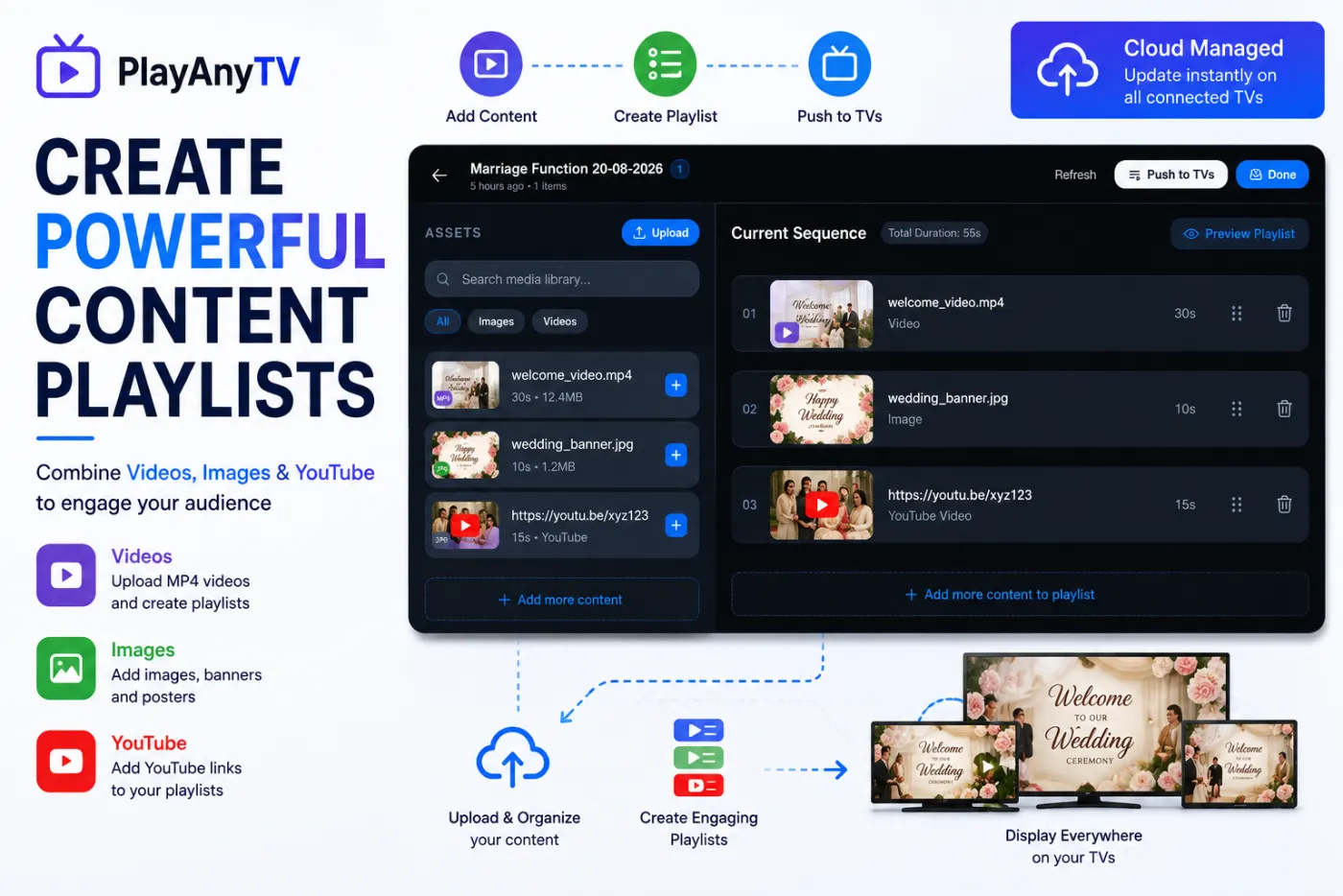
Build one looping playlist of your own videos, product images and YouTube clips for a store, showroom or waiting-room TV, and keep it running without someone pressing play.
Plenty of shops put a TV on the wall and then struggle to keep anything useful on it. YouTube stops at the end of a playlist or starts recommending other videos. A USB stick plays the same old files until someone updates it. What a business screen needs is a playlist that loops all day and can be changed remotely.
Mix Every Kind of Content in One Loop
PlayAnyTV playlists combine three content types: videos you upload, images you upload, and YouTube links. You can put a product video, three offer posters and a brand video from your YouTube channel in one sequence, in whatever order you want.
Set How Long Each Item Shows
Videos play for their full length. For images, set a duration per item, for example 8 seconds for a simple offer and 15 seconds for a slide with more text. The playlist then repeats from the start.
A Simple Formula for a Store Loop
Keep the loop short enough that a customer standing in line sees most of it, roughly two to four minutes. Open with your strongest offer, follow with new arrivals or best sellers, add a short video for movement, and end with your contact details, social handle or payment QR. Change the offer slides every week so regular customers notice something new.
Add YouTube Without Downloading
Paste a YouTube link into the playlist and it plays in sequence with your own media. This is useful for brand videos, product demos and tutorials you've already published. Use videos you own or have the rights to show.
Keep It Running Unattended
The TV plays the assigned playlist on its own. If something looks wrong, check the device status in the dashboard, take a screenshot of the screen, refresh the playlist or restart the app remotely, without asking a staff member to find the remote.
Different Screens, Different Loops
A showroom might run a product loop near the entrance and a financing or service loop by the billing desk. A clinic might run health tips in the waiting area and doctor timings at reception. Each paired TV can have its own playlist.
Where This Works Well
Retail and clothing stores, mobile and electronics showrooms, jewellery shops, salons, gyms, clinics, car dealerships, hotel lobbies, office receptions and school corridors: anywhere people wait, queue or browse.
PlayAnyTV
Loop videos, images and YouTube on any Android TV, and manage every screen from one dashboard.
Frequently Asked Questions
Can I mix YouTube videos with my own images and videos?
Yes. A PlayAnyTV playlist can combine uploaded videos, uploaded images and YouTube links in one sequence that loops.
Can I set how long each image stays on screen?
Yes. Set a custom duration for each item in the playlist builder.
Can different TVs show different playlists?
Yes. Assign a separate playlist to each paired TV, or share one playlist across several screens.